






















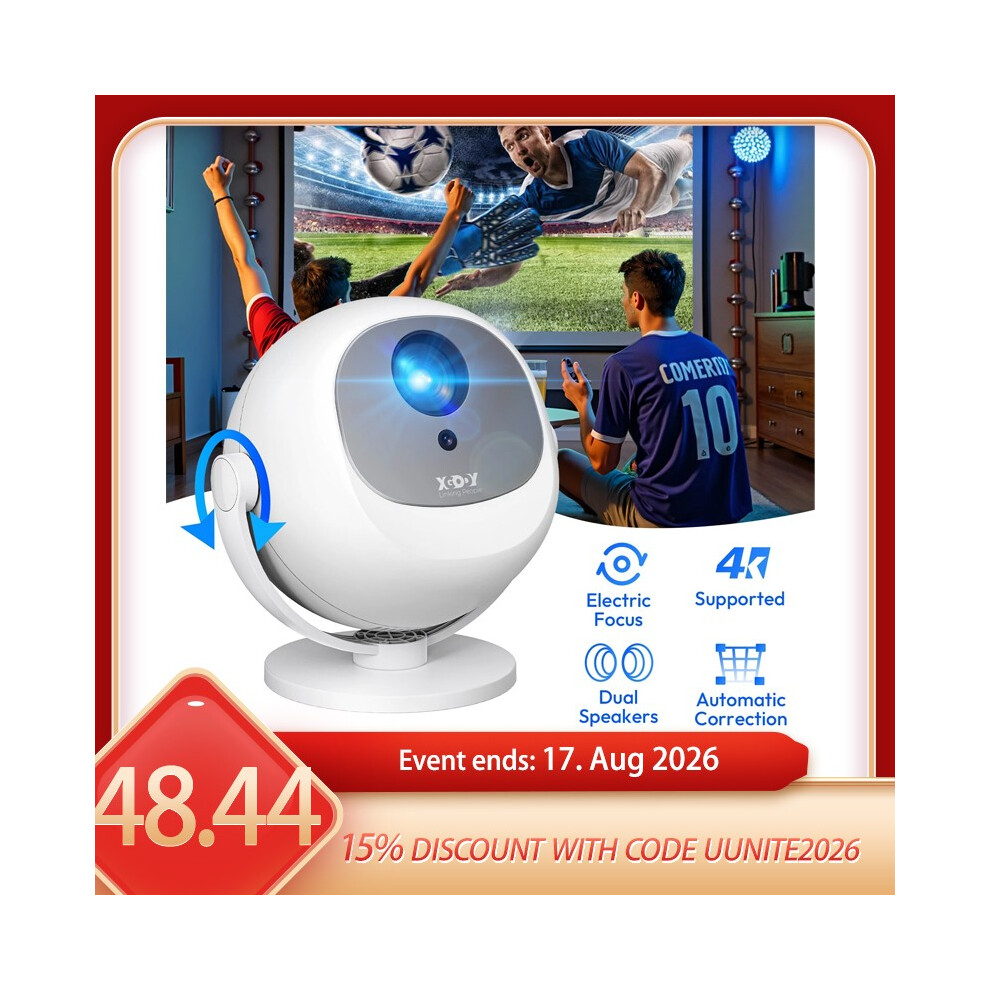
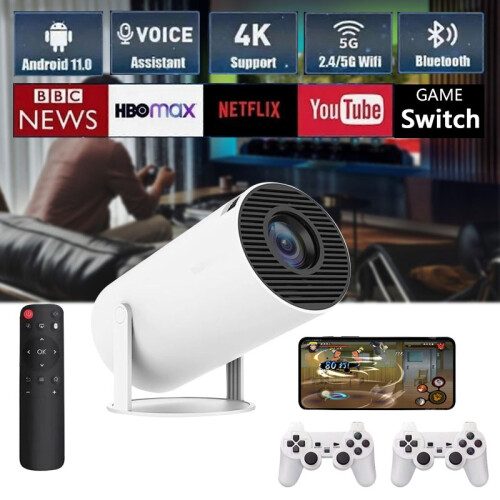
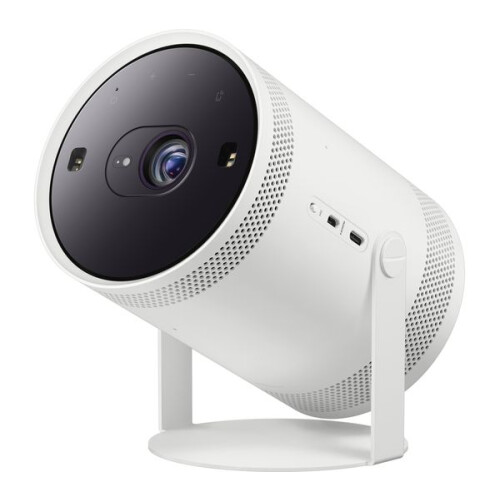
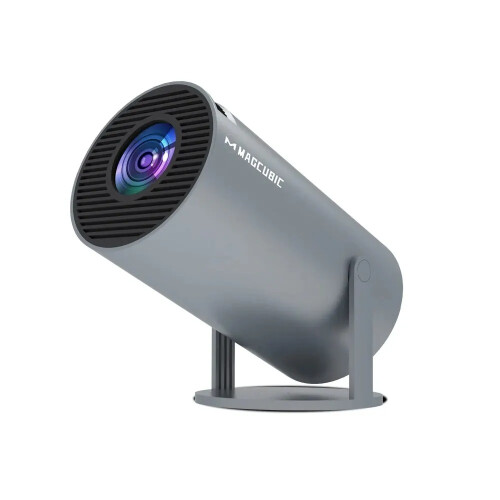
XGODY 4K Smart Projector Autofocus WiFi Video Home Theater Android 14 USB/HDMI
In stock
Smart shoppers OnBuy it!
- Earn Cashback on every purchase – spend it instantly on your next order
- Free delivery – on millions of items across the site
- Customers love us – 137,000 Trustpilot reviews and an 'Excellent' rating
Interest-free payment options available


See full product description & details
Delivery: Standard (Free) | Fri 6th - Sat 7th Nov
Sold by: Global Trade Vision LTD
Returns: 30 days
180-day payment protection
You might also like



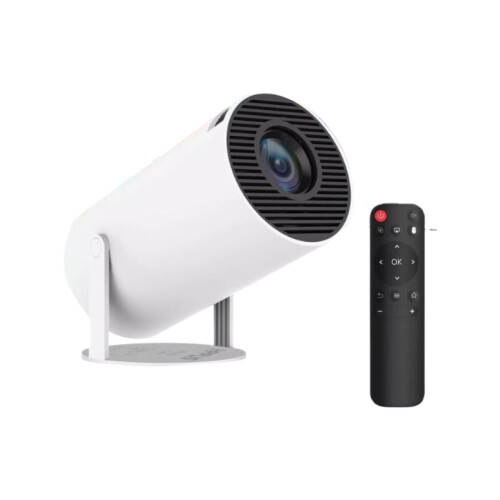


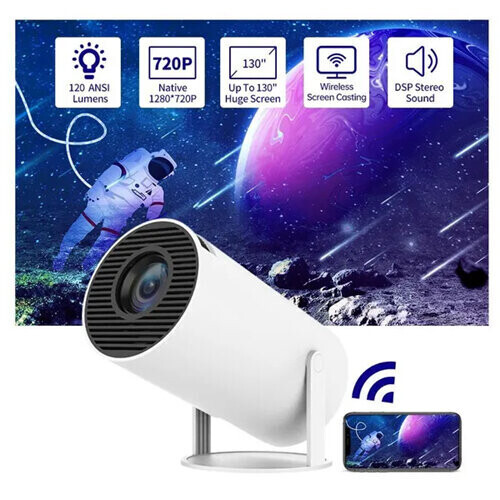
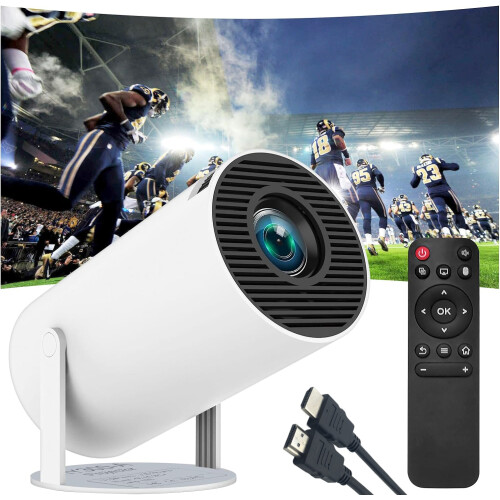

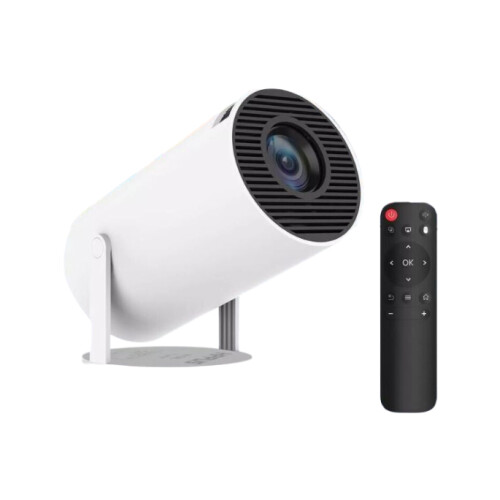


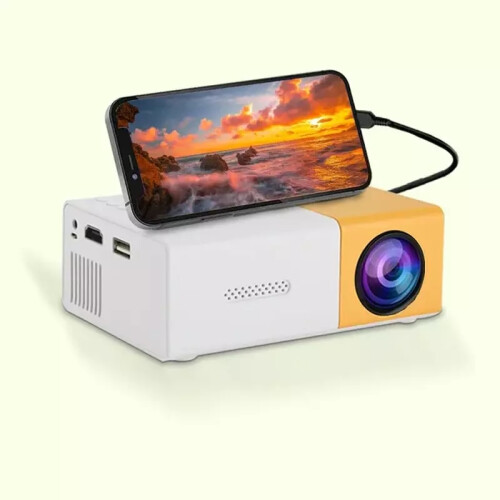


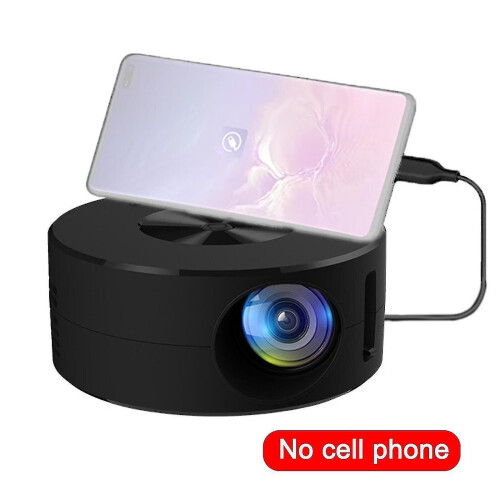


XGODY 4K Smart Projector Autofocus WiFi Video Home Theater Android 14 USB/HDMI Description
Product Description
Specifications:
Support resolution: 4K, 1080p, 720p
Native resolution: 720P
Brightness: 12000 lumens
Contrast ratio: 20000:1
Project Size: 40-120 inches
Lamp Life: 50,000 hours
Connectivity: HDMI, USB, AV
Aspect Ratio: 16:9
Screen size: 2inch
Light Source: LED
Projection Technology: LCD
Net weight: 0.78KG
Package list:
1 x Projector
1 x Remote Control
1 x Power Cable
1 x HDMI Cable
1 x User Manual
- Q&A
Question 1: How to change the signal source input to HDMI?
Answer: 1, Please choose "Settings" select "Source" and then choose HDMI, just connect your device and projector via HDMI cable,
2, lf you connect switch console to the projector via HDMI cable, the type-c to HDMI adapter needs to be powered separately.
Question 2: How to download and update APP Store?
Answer: 1, Enter the App Store, click the app information icon on the top right corner of the page, check if the version needs to be updated;
2, lf the page shows"new version" then click "update now" to update.
Question 3: How to download mainstream media like Netflix?
Answer: Enter the latest version of the App Store and download the app Disney+, Netflix and other apps.
Question 4: How to use Miracast?
Answer: Please select Miracast in "My Apps" open Miracast Settings, turn on phone mirroring, and then connect.
Because sometimes it will be delayed for traffic or flight jams. Q&A Question 1: How to change the signal source input to HDMI?
Answer: 1, Please choose "Settings" select "Source" and then choose HDMI, just connect your device and projector via HDMI cable,
2, lf you connect switch console to the projector via HDMI cable, the type-c to HDMI adapter needs to be powered separately.
Question 2: How to download and update APP Store?
Answer: 1, Enter the App Store, click the app information icon on the top right corner of the page, check if the version needs to be updated;
2, lf the page shows"new version" then click "update now" to update.
Question 3: How to download mainstream media like Netflix?
Answer: Enter the latest version of the App Store and download the app Disney+, Netflix and other apps.
Question 4: How to use Miracast?
Answer: Please select Miracast in "My Apps" open Miracast Settings, turn on phone mirroring, and then connect.
Because sometimes it will be delayed for traffic or flight jams.
Details
| OPC | PXX6ZYV |
|---|---|
| Brand | XGODY |
| Codes | 759234798480 (UPC) |
| Links | Smart Projectors |
Compare Sellers for XGODY 4K Smart Projector Autofocus WiFi Video Home Theater Android 14 USB/HDMI
- New from £80.47
| Seller | Ratings | Warranty | Returns | Price | Delivery | Total | Quantity |
|---|---|---|---|---|---|---|---|
| (18 reviews) | - |
30 Days
Free Returns No
|
£80.47
|
+Fast & Free Delivery
Est. Delivery:
6th-7th Nov
|
£80.47
|
Earn as you shop with instant Cashback on everything.
No catch, no cost
- Paid into your OnBuy account
- Spend it on your next purchase
- Save it or withdraw it
Become a Cashback VIP
Just 1 purchase unlocks bigger deals & rates